Help · Guide 2 of 20
Finding your way around
What each part of CoachLens is for, so you know where to go before you need it.
- About 3 minutes
- Nothing to set up
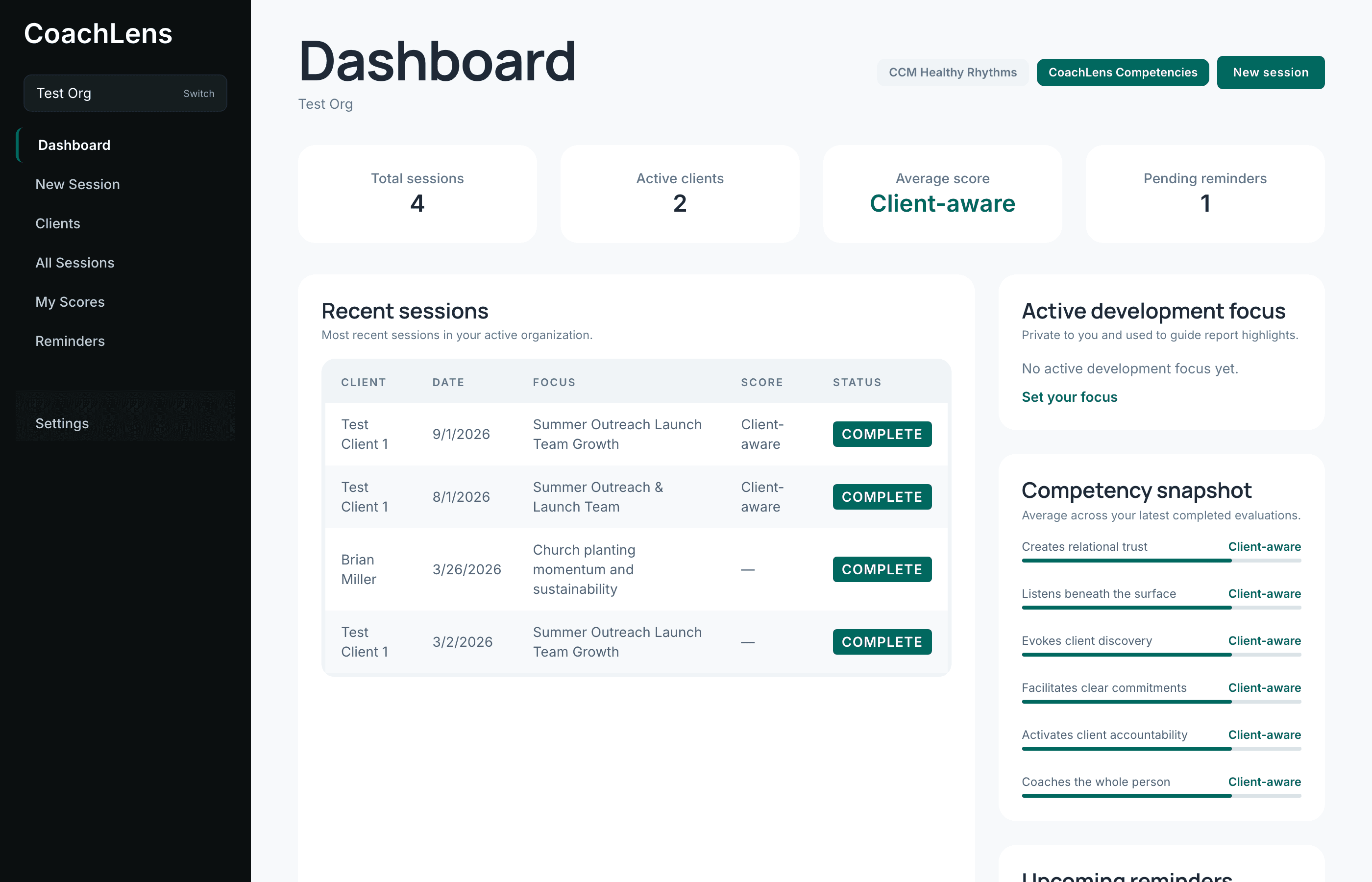
The sidebar is the whole app
Everything lives down the left-hand side.
- Dashboard — home. Recent sessions, your development focus, a competency snapshot, and anything you've flagged to follow up.
- New Session — where the work happens. This is how a coaching session gets into CoachLens and evaluated.
- Clients — the people you coach. You'll add someone here before running their first session.
- All Sessions — your full history in one table, including whether you've sent a report to your organization.
- My Scores — your growth over time: trend line, competency averages, and which are moving.
- Reminders — a simple follow-up list, split into overdue, upcoming and completed.
- Settings — your account, and the profile your coachees see if you use the client portal.
Read the dashboard top to bottom
Four cards summarize where you are: Total sessions, Active clients, Average score, and Pending reminders.
Below them, Recent sessions lists your latest work with the coachee, the date, the focus area, the score, and whether the evaluation has finished. Every row links through to the full evaluation.
The New session button sits at the top right of this page — that's the fastest way to start, and you'll use it more than any other control in CoachLens.
Check which organization you're in
Your organization's name sits at the top of the sidebar with a Switch link beside it. Most coaches belong to exactly one and never touch this.
It matters because your sessions, coachees and scores are all scoped to the organization you're currently in. If you work with two and something seems to be missing, this is almost always why.