Help · Guide 6 of 20
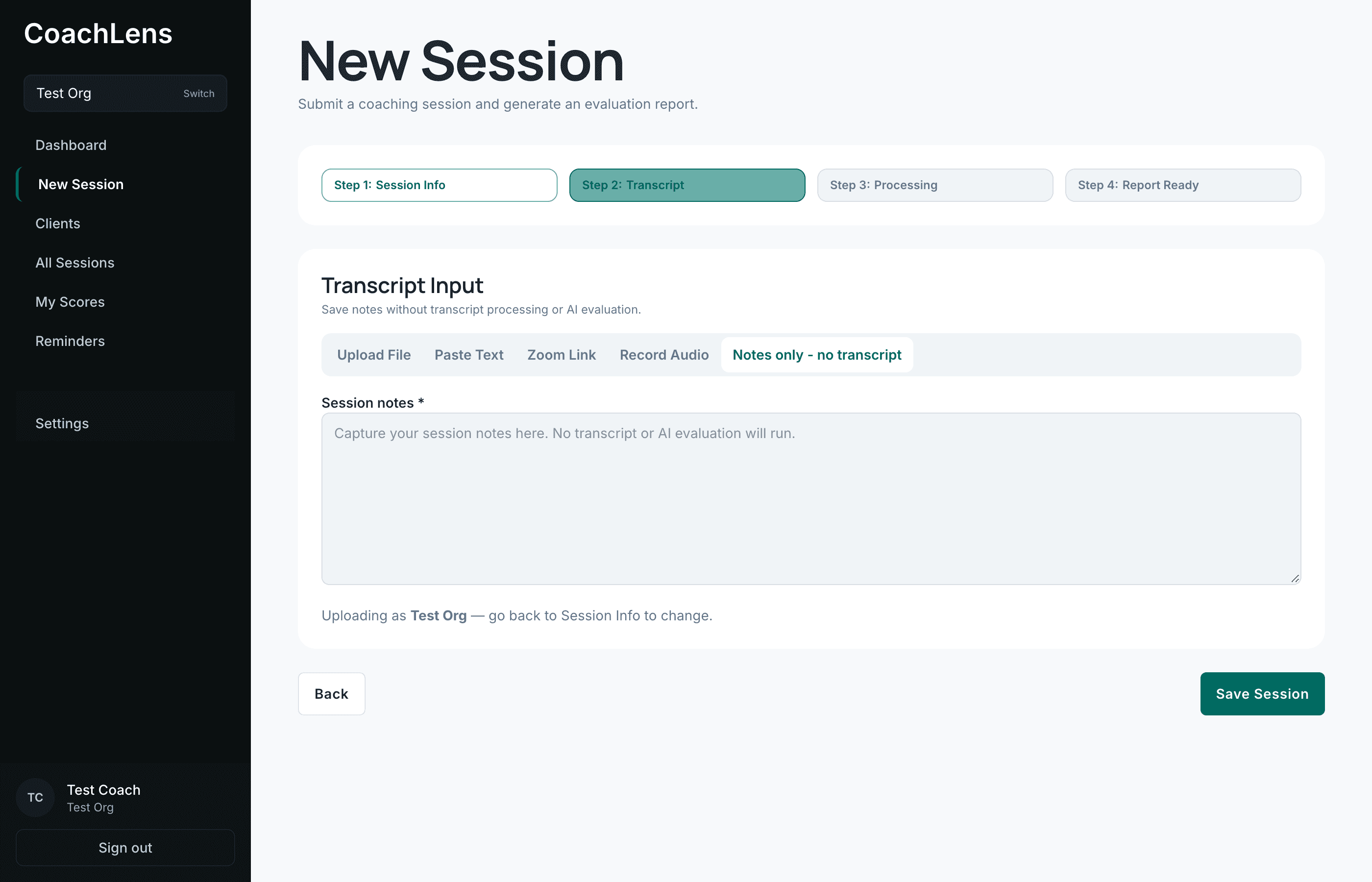
Getting a transcript in
Three ways to get a coaching conversation into CoachLens, plus how to handle a Zoom recording. Pick whichever fits how you already work — the rest of the process is identical.
- About 4 minutes
- Step 2 of the session wizard
Upload File
A
.pdf,.txtor.vtttranscript. Drag it onto the page or use Choose file. If Zoom, Otter, Descript or anything similar hands you a transcript file, this is the shortest path — Zoom's own.vtttranscript works directly. (Zoom only creates one for cloud recordings; see below.)Keep documents under about ten megabytes — a text transcript of a long session is nowhere near that, so you'll rarely think about it.
Paste Text
Copy the transcript, paste it in. The box counts characters as you go, so you can see it landed.
This is the most reliable option when a file won't cooperate — if an upload is misbehaving, opening the file and pasting its contents almost always works.
Recording on Zoom
Zoom writes its own transcript, but only for cloud recordings — and cloud recording needs a paid Zoom account. A recording saved to your computer never gets one.
To set it up once: in Zoom on the web, open Settings → Recording, and turn on Create audio transcript under cloud recording. Then choose Record to the Cloud when you start recording a session.
After the session, open it on Zoom's Recordings page and download the file called Audio Transcript — it saves as a
.vttfile — then upload it under Upload File. CoachLens tidies up Zoom's timestamps for you. The transcript usually appears a little while after the recording itself, so if it isn't listed yet, check back later.Notes only — no transcript
For a session you didn't record. You still get a session on the record, with your notes and your action items, and you can still send a report to your organization.
The one thing it can't give you is an AI evaluation, because there's no conversation for it to read. That's the whole trade.
A notes-only session is a real session. Use it rather than logging nothing.