Help · Guide 10 of 20
Sending a session report
How your organization finds out you coached. It's assembled from the session you already submitted, so you're editing rather than writing.
- About 3 minutes
- Permanent once submitted
Start from any session
Three routes, all landing in the same form: the Report Ready step straight after a session, the session's own page, or the Session Reports tab on your coachee's page.
Any session can be reported — not just your most recent one. If you're catching up on a backlog, work through them in whatever order you like.
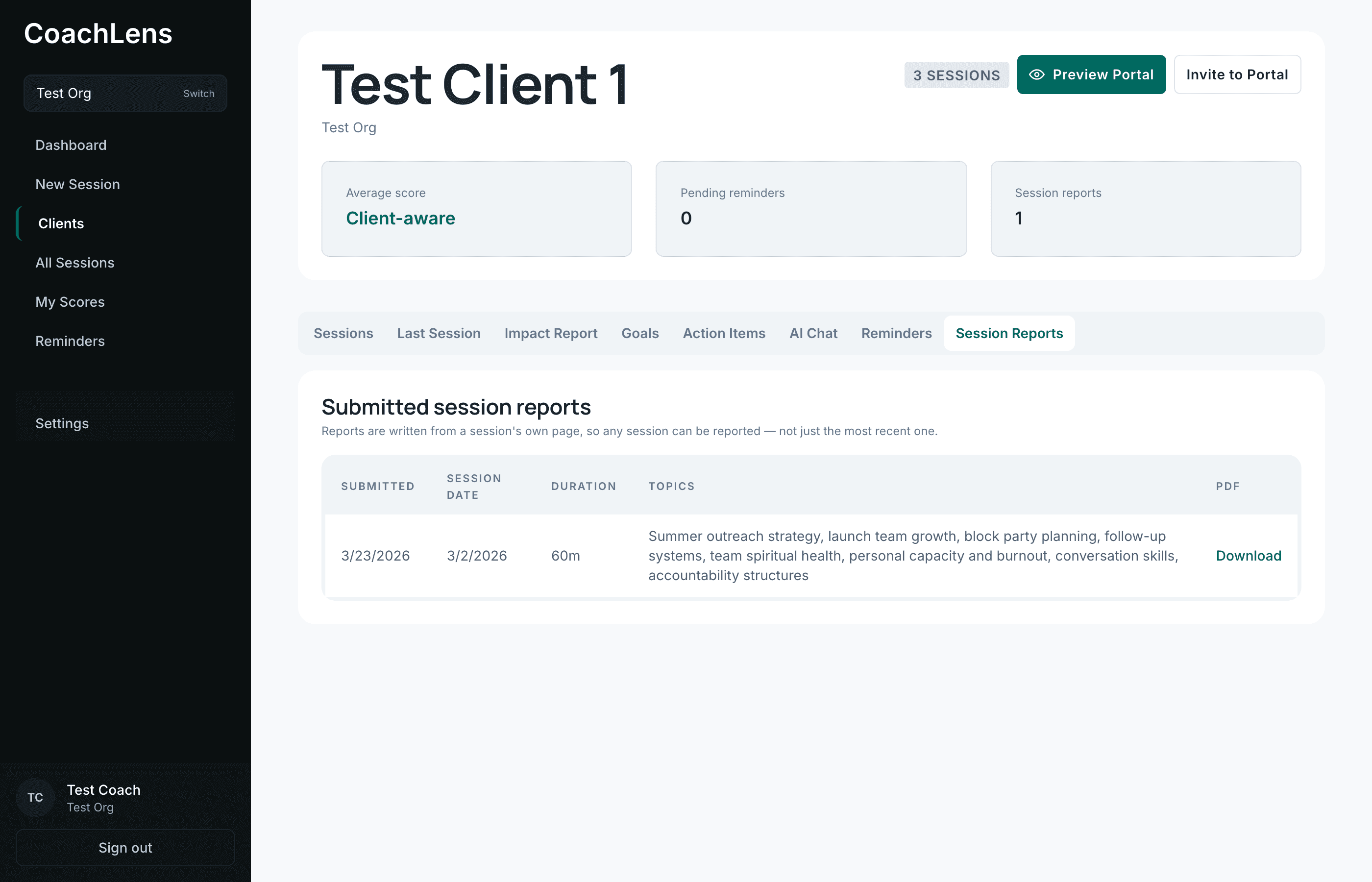
Everything you've sent about this coachee, with a PDF of each. Check what's already filled in
CoachLens assembles the report from the session you submitted. It isn't asking AI to invent a new version, and it isn't asking you to write the session up twice.
- Duration — in minutes.
- Session Focus — what the session was about.
- Key Insights & Reflections — the substance.
- Actions & Commitments — one per line.
- Additional Notes — optional, for anything that doesn't fit above.
Every field is editable. Read it before you send — it's assembled from your session, but it goes out over your name.
Read the review screen
Continuing shows you exactly what your organization receives, and states plainly that a submitted report cannot be edited, withdrawn, or deleted.
Submit
Your administrators get an email letting them know it arrived, so nothing depends on someone remembering to check a dashboard. You get a PDF you can keep or forward.
Action items are captured into the report as they stood at that moment — editing them later doesn't quietly rewrite a report you already sent.