Help · Guide 13 of 20
The client portal
Your coachee can have their own login. Whether you use it is genuinely up to you — so look before you decide.
- About 4 minutes
- Optional, per coachee
Preview it first — nothing is sent
On your coachee's page, click Preview Portal. It shows you exactly what the portal looks like using made-up sample data. Nobody is invited, no email goes out, nothing is shared.
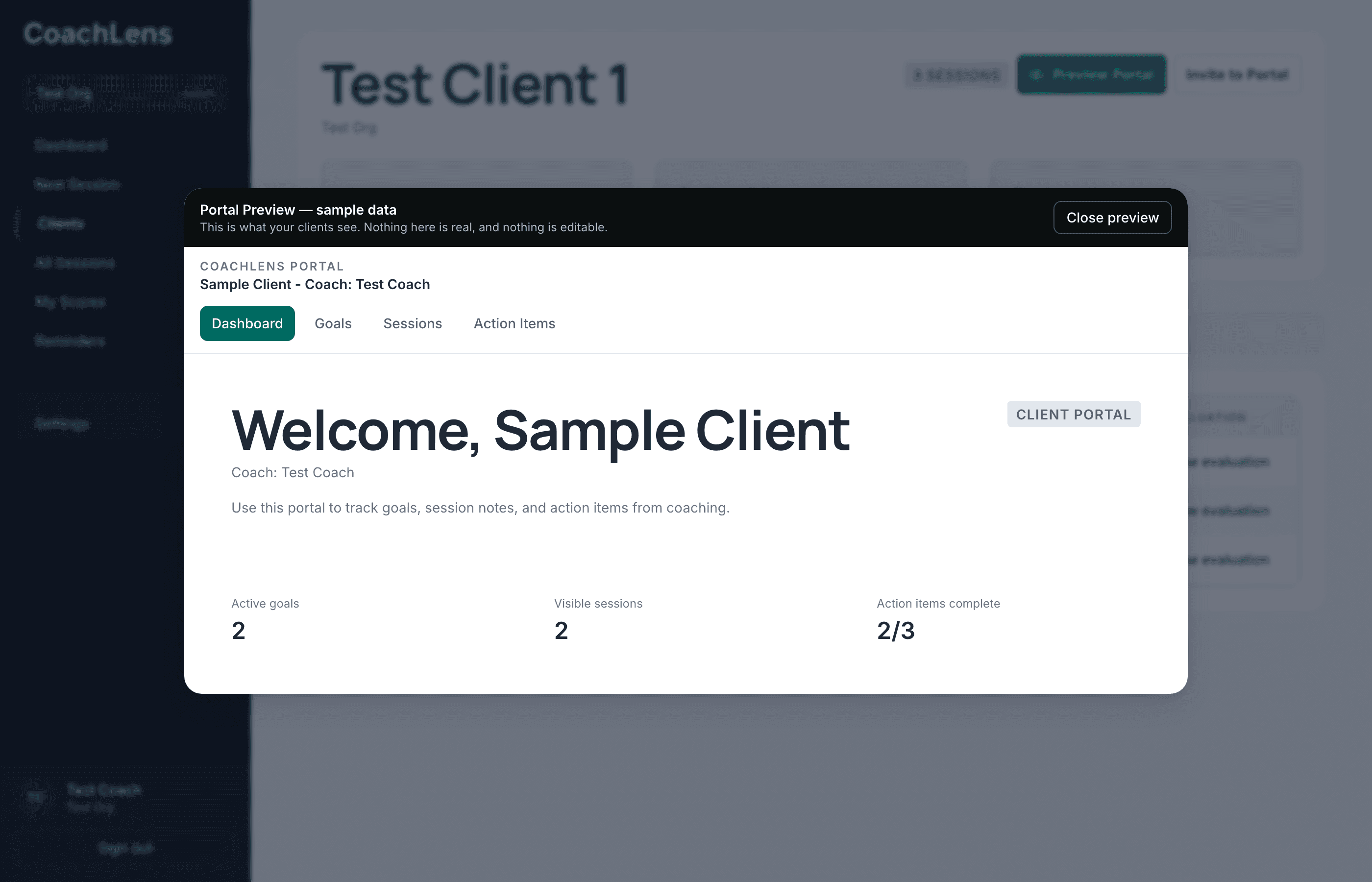
Sample data throughout — the header says so, and nothing in it is editable. What they get
A dashboard with your welcome message, then three tabs: their goals, their sessions with a summary of each, and their action items — which they can tick off themselves.
What they don't get: your evaluation, your scores, or your private notes. Ever.
Fill in your profile before you invite anyone
Your welcome message, scheduling link and payment link all come from Settings. They're the first thing your coachee sees, and an empty portal makes a poor first impression.
Two minutes there, before you send a single invite. That's covered in guide 15.
Invite them
Close the preview and use Invite to Portal. Either enter their email and let CoachLens send it, or copy the link and send it yourself however you normally talk to them — which often lands better than a system email.
You'll see an Invite Pending badge until they accept.
A suggestion
Preview it, sit with it, then invite one coachee you have a good relationship with before rolling it out to everyone. The portal changes the texture of the coaching relationship, and you'll want to feel that with one person before ten.