Help · Guide 15 of 20
Your coach profile
Two minutes in Settings, mostly for one section people scroll straight past.
- About 2 minutes
- Do this before your first portal invite
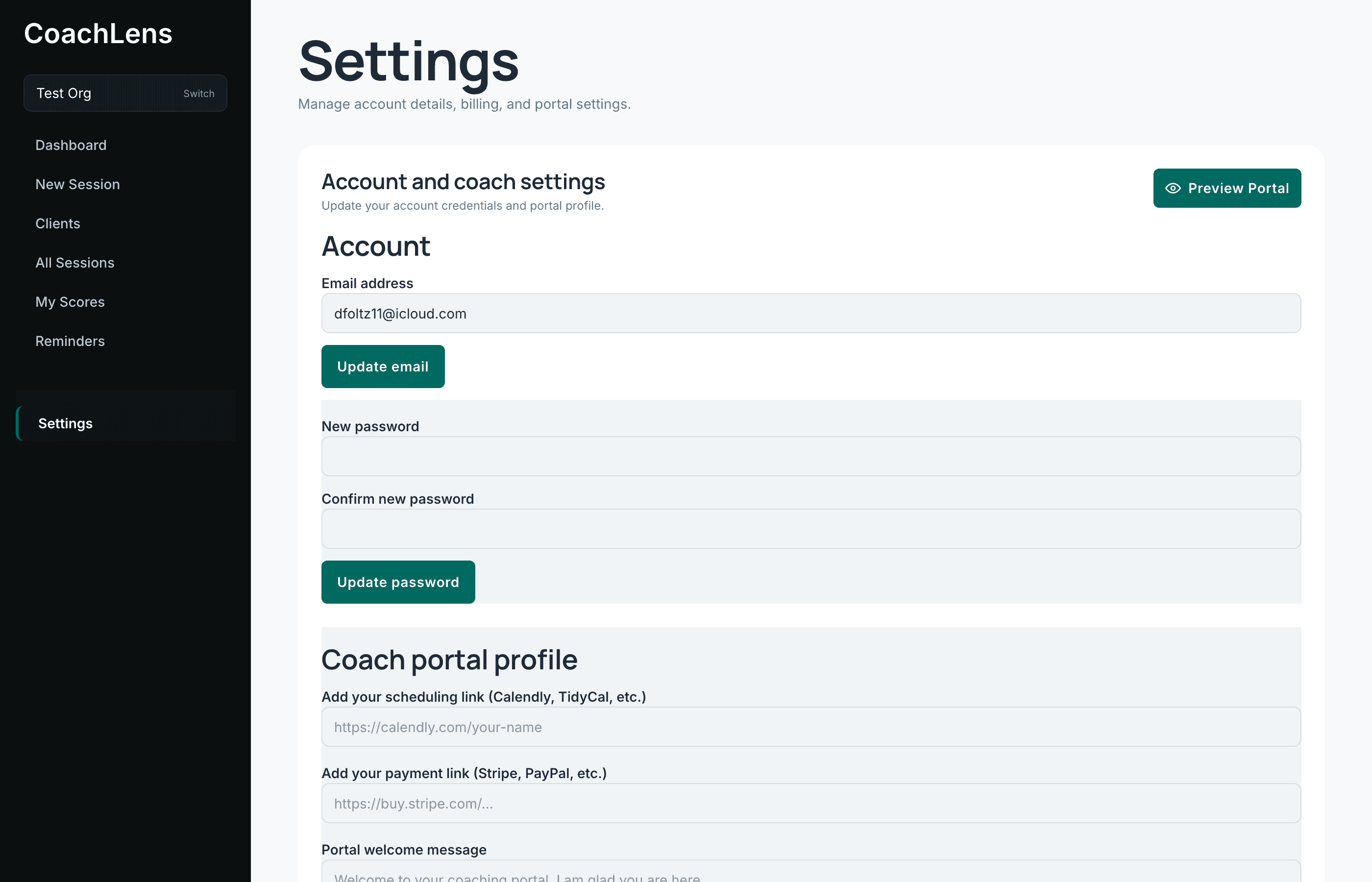
Account
Your email address and your password, each with its own update button. Nothing surprising here.
Coach portal profile — the one that matters
Three fields, and all three appear in your coachee's portal.
- Scheduling link — Calendly, TidyCal, whatever you use. This is the one I'd fill in first: it means a coachee who wants to book their next session doesn't have to email you and wait for a reply.
- Payment link — only if you take payment directly. If your organization handles that, leave it blank.
- Portal welcome message — the first thing they read when they sign in.
Write two or three sentences in your own voice. Not "Welcome to your coaching portal." Something that sounds like you, because it's doing the job a handshake would.
Save, then use Preview Portal right there to see how it reads.
Your session usage
At the bottom you'll find how many sessions you've used this cycle and how many remain. Worth a glance if you're working through a backlog of recordings.